
Bypassing UAC through msconfig
Hello everyone I am Irfan and today, let’s delve into the topic of bypassing UAC by GUI based bypasses. So, let’s get started and explore this concept.
What is UAC?
User Account Control (UAC) stands as a pivotal security feature in the Windows operating system, designed to default any new process to run within the security context of a non-privileged account. This rule encompasses processes initiated by any user, administrators included. The fundamental concept is that relying solely on a user’s identity is insufficient to determine the authorization of certain actions.
In situations where an administrator needs to execute a privileged task, UAC steps in to provide a means of elevating privileges. This elevation process involves presenting a straightforward dialogue box to the user, seeking explicit approval to run the application in an administrative security context.
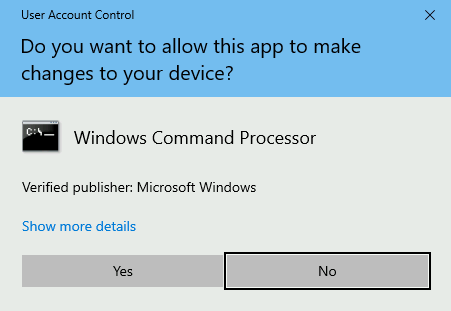
Mandatory Integrity Control (MIC) is a core component of UAC, introducing the concept of Integrity Levels (ILs) to differentiate users, processes, and resources. Essentially, users or processes with a higher IL access token gain access to resources with lower or equal ILs. MIC takes precedence over standard Windows Discretionary Access Control Lists (DACLs), emphasizing that having the right permissions in the DACL may not be sufficient if the IL isn’t elevated.
There are four distinct ILs utilized by Windows, ranging from lowest to highest: Low (for Internet interaction), Medium (for standard users and filtered Administrators’ tokens), High (for elevated Administrators’ tokens if UAC is enabled), and System (reserved for system use).
When a process necessitates resource access, it inherits the calling user’s access token and its associated IL. The same principle applies when a process spawns a child.
To delineate roles effectively, User Account Control (UAC) employs a distinct approach for regular users and administrators during the logon process:
- Non-administrators: Upon logging in, non-administrators are granted a singular access token, utilized for all user-initiated tasks. This token is endowed with a Medium Integrity Level (IL).
- Administrators: In contrast, administrators receive a dual set of access tokens:
- Filtered Token: This token, designed for routine operations, deliberately lacks Administrator privileges. It bears a Medium IL, aligning with standard user tasks.
- Elevated Token: For situations demanding full Administrator privileges, administrators possess a separate token. Activated explicitly through UAC, this token boasts a High IL, signifying elevated security clearance.
By adopting this token-based system, administrators predominantly operate using their filtered token, ensuring routine tasks are executed with standard privileges. Only when explicitly prompted by UAC do administrators leverage their elevated token, thereby minimizing the risk of unintentional or unauthorized use of elevated privileges in everyday operations. This nuanced approach enhances system security and aligns with the principle of least privilege.
UAC’s settings offer flexibility based on security requirements, with four notification levels:
- Always notify: Prompts the user for authorization when making changes to Windows settings or when a program attempts to install applications or modify the computer.
- Notify me only when programs try to make changes to my computer: Prompts the user for authorization when a program installs applications or makes changes, excluding Windows settings changes for administrators.
- Notify me only when programs try to make changes to my computer (do not dim my desktop): Similar to the above but without dimming the desktop during UAC prompts for enhanced user experience.
- Never notify: Disables UAC prompts entirely, causing administrators to run everything with a high privilege token.
By default, UAC is configured at the “Notify me only when programs try to make changes to my computer” level. This default setting strikes a balance between security and user convenience, requiring authorization only when significant system changes are about to occur.
Bypassing UAC
From an attacker’s viewpoint, scenarios may arise where obtaining a remote shell on a Windows host is achieved through PowerShell or cmd.exe. Access might even be gained through an account affiliated with the Administrators group. However, when attempting to establish a persistent backdoor user for future access, encountering the following error becomes a common challenge:
PS C:\Users\attacker> net user backdoor Backdoor /add
System error 5 has occurred.

Access is denied.
By checking our assigned groups, we can confirm that our session is running with a medium IL, meaning we are effectively using a filtered token:
PS C:\Users\attacker> whoami /groups

GROUP INFORMATION
-----------------

Group Name                                                    Attributes
============================================================= ==================================================
Everyone                                                      Mandatory group, Enabled by default, Enabled group
NT AUTHORITY\Local account and member of Administrators group Group used for deny only
BUILTIN\Administrators                                        Group used for deny only
BUILTIN\Users                                                 Mandatory group, Enabled by default, Enabled group
NT AUTHORITY\REMOTE INTERACTIVE LOGON                         Mandatory group, Enabled by default, Enabled group
NT AUTHORITY\INTERACTIVE                                      Mandatory group, Enabled by default, Enabled group
NT AUTHORITY\Authenticated Users                              Mandatory group, Enabled by default, Enabled group
NT AUTHORITY\This Organization                                Mandatory group, Enabled by default, Enabled group
NT AUTHORITY\Local account                                    Mandatory group, Enabled by default, Enabled group
LOCAL                                                         Mandatory group, Enabled by default, Enabled group
NT AUTHORITY\NTLM Authentication                              Mandatory group, Enabled by default, Enabled group
Mandatory Label\Medium Mandatory Level
Even when we get a Powershell session with an administrative user, UAC prevents us from performing any administrative tasks as we are currently using a filtered token only. If we want to take full control of our target, we must bypass UAC.
So we will look today at a GUI based bypass through msconfig
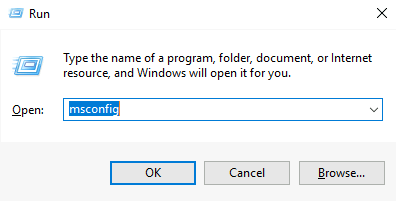
Our goal is to obtain access to a High IL command prompt without passing through UAC. First, let’s start by opening msconfig, either from the start menu or the “Run” dialog:
If we analyze the msconfig process with Process Hacker, we notice something interesting. Even when no UAC prompt was presented to us, msconfig runs as a high IL process
This is possible thanks to a feature called auto elevation that allows specific binaries to elevate without requiring the user’s interaction.
If we could force msconfig to spawn a shell for us, the shell would inherit the same access token used by msconfig and therefore be run as a high IL process. By navigating to the Tools tab, we can find an option to do just that:
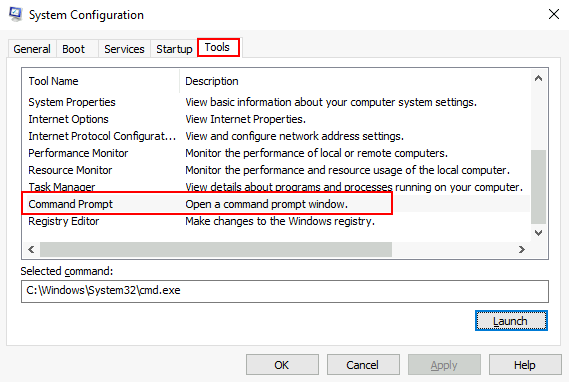
If we click Launch, we will obtain a high IL command prompt without interacting with UAC in any way.
If you will run again this command
whomai /groupsYou will find that we have gained high IL.

There are other methods to bypass UAC, maybe we will discuss them next time.
I hope you enjoyed it, You can follow me here on LinkedIn or Twitter.