
Malware Analysis — Part-1 Basic Static Analysis
Hello everyone, I am Irfan, Today we are going to start a new series on Malware analysis and today we are going to talk about how to perform basic static analysis, So let’s get started……
We are not going to talk about how to setup the malware analysis lab because there a plenty of blogs and YouTube videos out there which show how to build a malware analysis lab which you can find on your own.
So we are going to start from Basic static Analysis
What Is Basic Static Analysis
Basic Static Analysis consists of analyzing a file without ever executing it. It works by extracting all the possible static information inside of the file such as the hash, strings, libraries, imported functions, resources etc. To get a basic understanding of the functionalities and the behavior of the malware before its execution.
So we will be performing static analysis on wannacry.exe which you can download from here.
First of all we will calculate the hashes of the file in our flare-vm.

There are millions of files in this world, and we need a way to uniquely identify it first. The name of the file can’t be used as its unique identifier. Two files on two different computers or even on the same computer can have the same name. This is where hashing comes in handy
and is used in the malware analysis world to uniquely identify a malware sample.
Now we can look for these hashes on virusTotal.
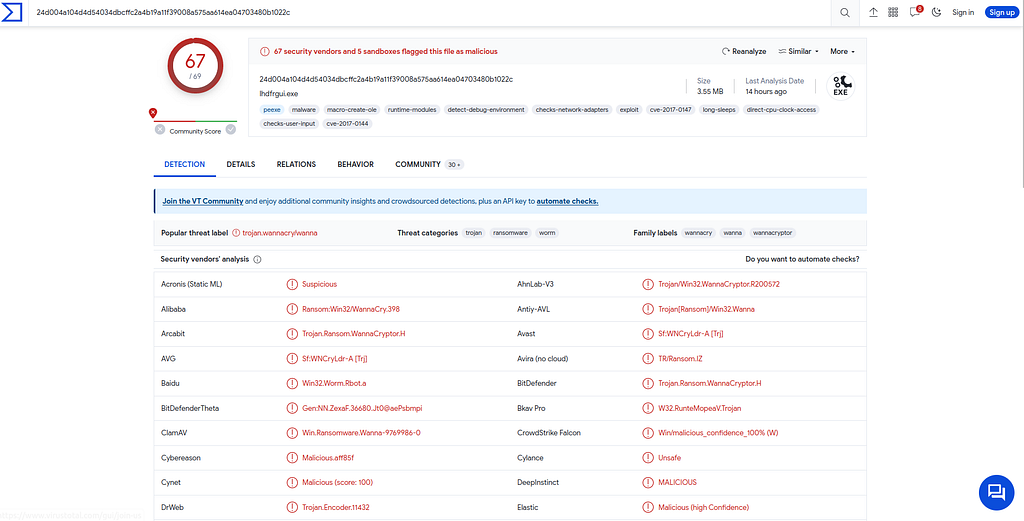
We find that this file is flagged as malicious by 67 vendors. You can also look at other details,relations and behavior.
Some other alternatives to virusTotal
When using analysis platforms, you often come across clean samples, or the detection engines found no malware.
For this purpose we will use this sample from HuskyHacks. Thanks to HuskyHacks to let us use his samples in this blog. He has a course on Malware analysis. First 6 hours of this course are free on Youtube.
Strings and Floss
Malware samples are nothing but a program. The programs include many strings. These strings can be good indicators to identify the type,functionality and intent of the software. There is no set of strings that indicate maliciousness.
When encountering strings, search them on google and look for if any researchers have mentioned them in their analyses.
Watch out for a set of domain names, which may domains used by the attacker for Command and Control.
Watch out for names of anti-malware and security tools.
Some Malwares are known to check for the presence
of security tools. This includes the antivirus vendor names, ProcMon,
Process Hacker, Process Explorer, Wireshark, OllyDbg, and so on.
Watch out for IP addresses, that might be an attacker’s
CnC server or another intermediate relay server to communicate
with the attacker server.
Watch out for a set of file extensions, which may indicate that we are dealing with ransomware since it goes through all files on
the system and encrypts files that match certain file extensions.
Now we will extract strings from this binary.
We can use strings.exe to extract strings from this binary but we will use floss.exe to extract strings, because it is a better version of strings. It will not only extract strings from the binary but will try to decode and de-obfuscate any strings.
So let’s use floss.exe on our binary and save the output to a abc.txt file.

If we now open abc.txt you will find that there are a lot of useless strings there. But if you keep scrolling down you will find some strings that can tell us something about the binary.
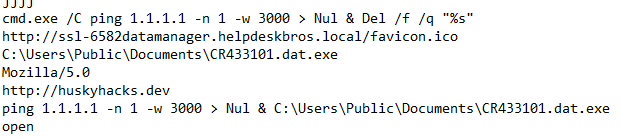
You can also see some windows api calls in this binary. If you don’t know about them, you can google them to know about these windows api calls.
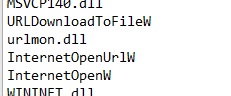
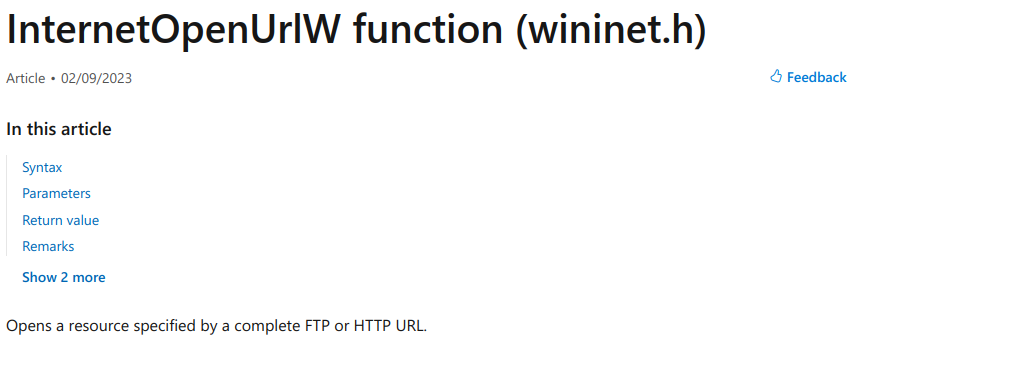
e;g If we search InternetOpenUrlW on google we can see in Microsoft docs what this api call is doing.
Analyzing the Binary in PEView
To look at the structure of the binary we will open it in PEView program. We can see what kind of functions this binary is using.
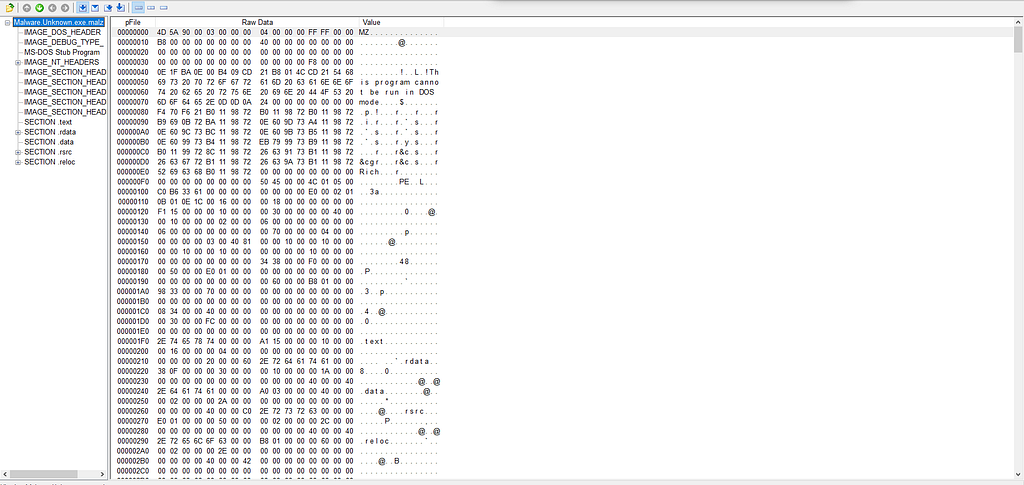
This is how the portable executable file looks like. You can see Raw Data which are hexadecimal bytes, pFile which tells us about the offset of these bytes and value which represents the character representation of these bytes, how they look like. Every PE follows the same exact format. It starts with the MZ which tells the Operating system that this is Windows Portable Executable File.
Then below it is a strings “This program cannot be run in DOS mode”. This string is the DOS header of this PE file. We will not see all the sections of this PE file here, but I will go through some important sections for Malware Analysis.
First of all we will look at IMAGE_FILE_HEADER in IMAGE_NT_HEADERS section.
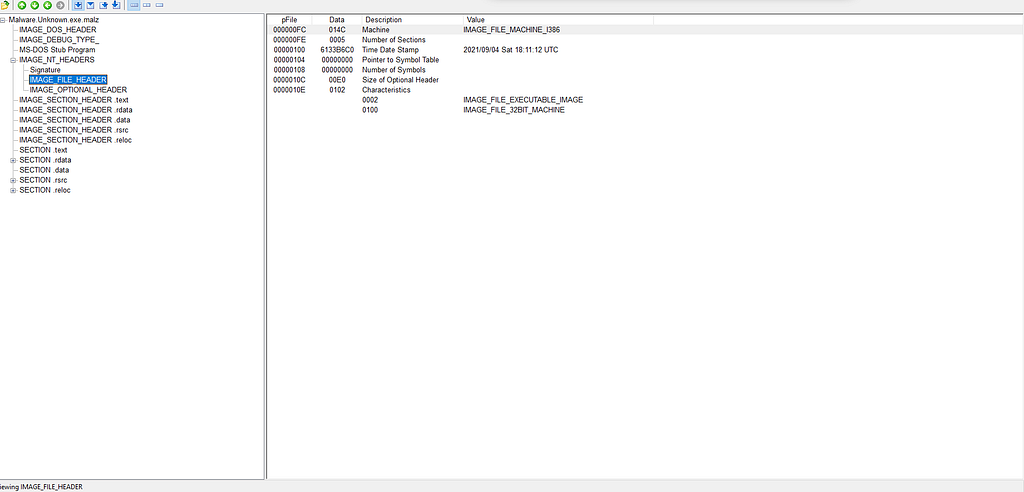
In this section there is a Time Date Stamp which is a time of compilation of this PE file. In some scenarios this Time date stamp can be same no matter when this file is compiled.
Now if we look at IMAGE_SECTION_HEADER.text section.
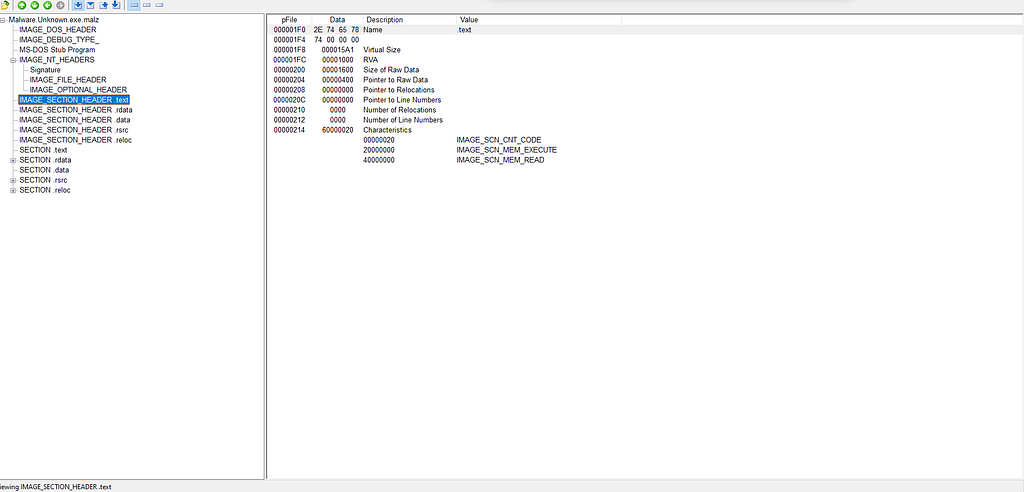
It is the one of the five locations in the binary that has information that can be read into the binary at the runtime. The important thing here is Virtual Size and size of Raw Data. If we compare there data values in hexadecimal and if Virtual size is greater than Raw data then it may be a packed binary.
If you are unfamiliar with the concept of packed binary, we will discuss it shortly.
Virtual size is the total size of the section when loaded into memory
Size of Raw Data is the size of the section (for object files) or the size of the initialized data on disk (for image files).
Now if we look at IMPORT_Address_Table in SECTION.rdata
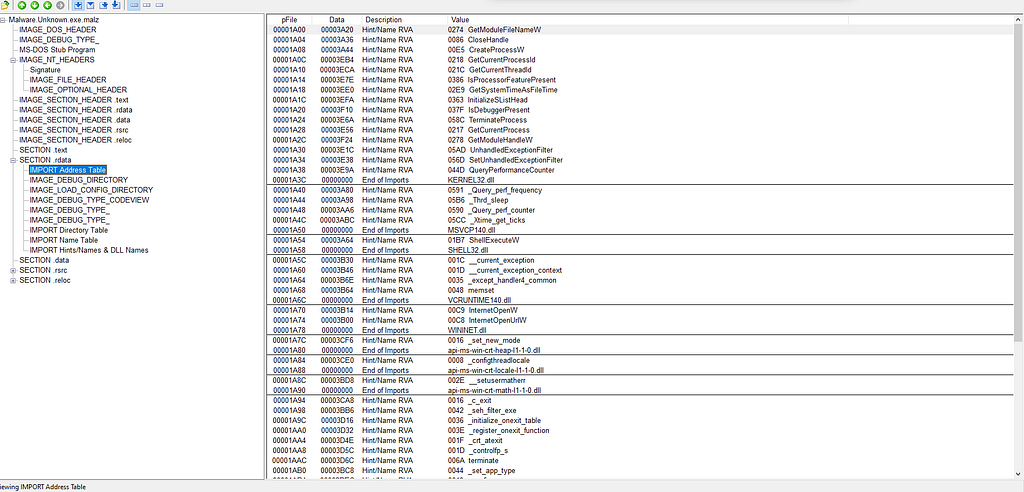
Import address table is the part of the Windows module (executable or dynamic link library) which records the addresses of functions imported from other DLLs. For example, if your program calls GetSystemInfo(), then the executable or DLL will have an entry in its import table that says, “I would like to be able to call the function GetSystemInfo() from kernel32.dll.” When the module is loaded, the system goes and finds that function, obtains its address, and stores it in a table known as the Import Address Table (IAT). When the module needs to call the GetSystemInfo() function, it does so by fetching the value from the Import Address Table and calling it.
Analyzing the Binary in PEStudio
It combines the functions of all the tool we used till now. If we now open our binary in PEStudio
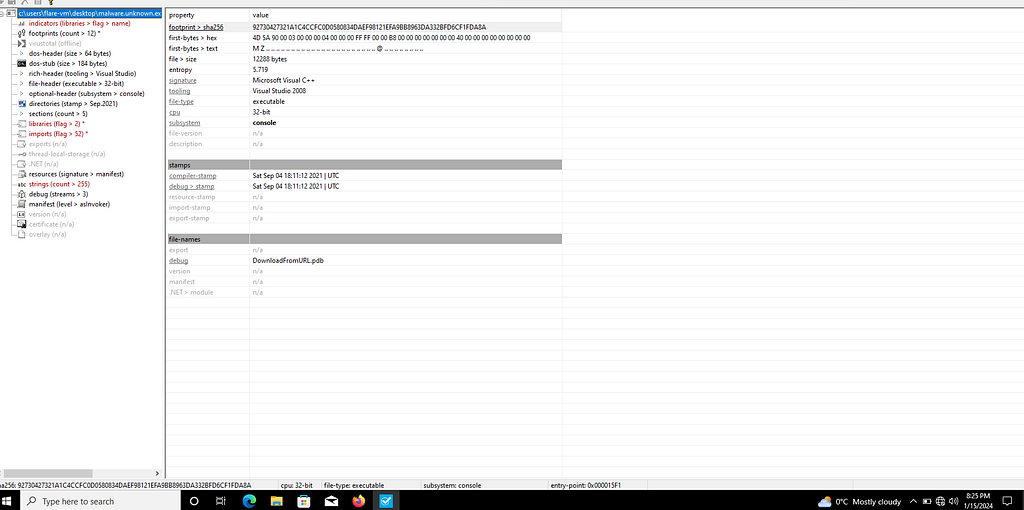
You can find Sha256 hash. You can see there is a lot of information there. It gives us first bytes of the PE in hex and text. It also tells us about the tooling and signature of this PE file. You can also find Compiler-stamp here. It also gave us architecture information.
If we look at indicators section
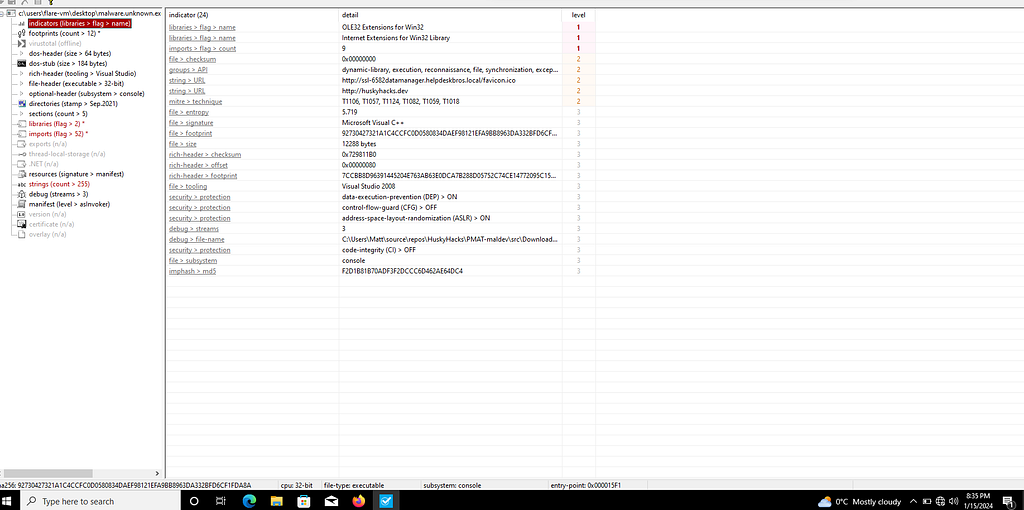
this section gives us information about the strings and patterns that it finds in a PE file and tells us if those strings and patterns tend to be malicious and it also gives us the level from most severe to least severe.
Now if we look at footprint section
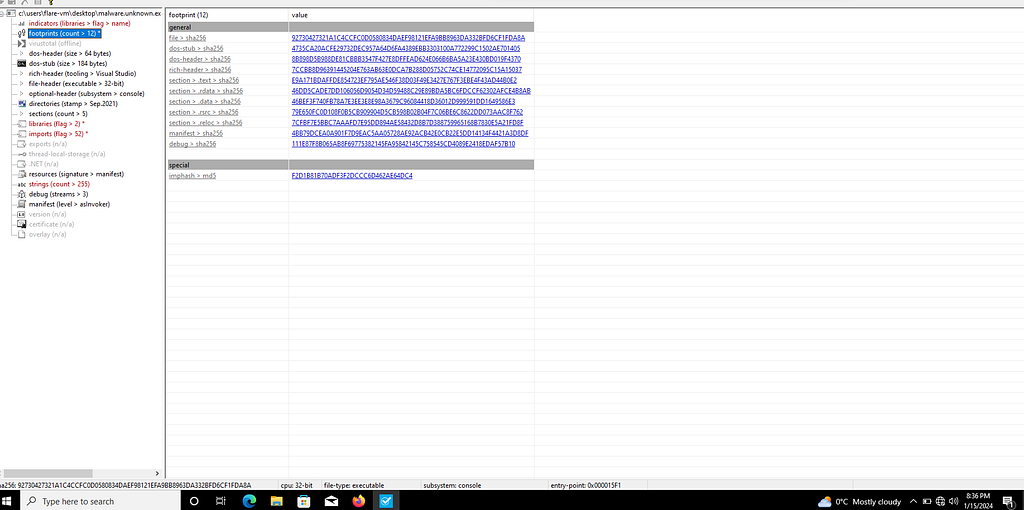
It gives us the sha256 of the whole PE file and it also give us the sha256 hash of the various sections of this PE file.
It also gives us the imphash. The imphash stands for “import hash”.. The imphash is a hash of the function calls/libraries that a binary imports and the order in which these libraries are present in the sample. This helps identify samples from the same threat groups or performing similar activities. More details on the Imphash can be found on Mandiant’s blog here.
Now if we look at libraries section
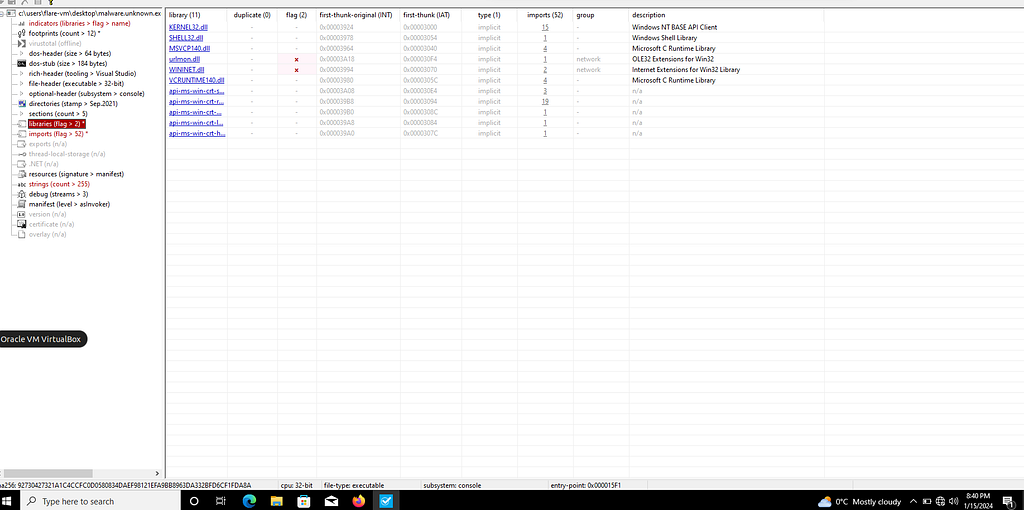
This is the list of all the DLL’s a PE file loads into it. But there is blacklist field which indicates that these DLL’s may be used in a malicious program. We also have a description field to tell us about these DLL’s.
Now if we look at strings section
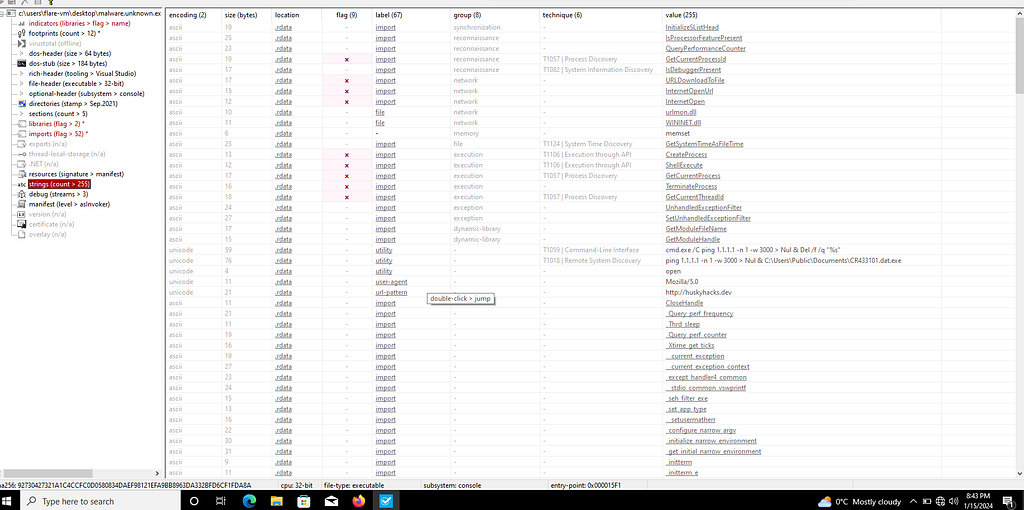
we can look at all the strings in this binary and there is a label column which tells us about the what this strings might be doing. There is another column named flag which tells us these strings might be abused for malicious purposes.
So, this is for today. Bye till next time. The next blog is going to be on Basic Dynamic Analysis.
I hope you enjoyed it, You can follow me here on LinkedIn or Twitter. If you have any suggestion or find mistakes in this blog feel free to contact me through Linkedin or Twitter.