
Malware Analysis — Part-2 Basic Dynamic Analysis
Hello everyone, In the previous blog we talked about Basic static analysis. If you have not read that one, I recommend you to read that blog before reading this one.
What is Dynamic Analysis
Dynamic analysis is a technique to launch the malware and analyze its behavior during run time.
The first step in the dynamic analysis process is to casually run the binary and notice its behavior. A lot of malware like ransomware have explicit
behavior. Running the malware and observing the effects that the
malware had on the system, and the files on disk might be enough
to conclude that the sample is malware and figure out the type and
intent of the malware.e:g if the malware encrypts the files on your system it is definitely a ransomware.
Not every malware sample you obtain might run when you try to execute it for the first time.Some of the reasons for this can be
• Sometimes the samples might need a certain environment or a
certain SDK/framework installed, which might be missing in your
analysis VM. For example, the sample you are analyzing might
be a .NET sample that requires a particular version of the .NET
Framework, which may not be installed on your system.
• Or the sample might be Java malware that requires the Java Runtime
Engine (JRE), which is not installed on the system.
• The malware might have certain dependencies on DLLs and
config files that it needs to run, which might be missing from your
analysis VM.
When it comes to dynamic analysis there are host based indicators and network based indicators.
- Network-based Indicators, such as malicious IP addresses, domains, or URLs can also include network traffic patterns, unusual port activity, network connections to known malicious hosts, or data exfiltration patterns.
- Host-based Indicators are related to activity on a workstation or server. File names or hashes, registry keys, or suspicious processes executing on the host are examples of host-based indicators.
So we will be performing basic dynamic analysis on this sample from PMAT labs. We have done static analysis of this sample in our previous blog.
For performing Basic dynamic analysis we need to setup our malware analysis lab, if you have not setup your malware analysis lab, I recommend you to setup your lab this way.
Now if you have setup the lab and also setup the inetsim in your remnux VM.
Now we will run this binary without starting inetsim in our remnux machine. You will see we will get a command prompt window and the binary disappears.
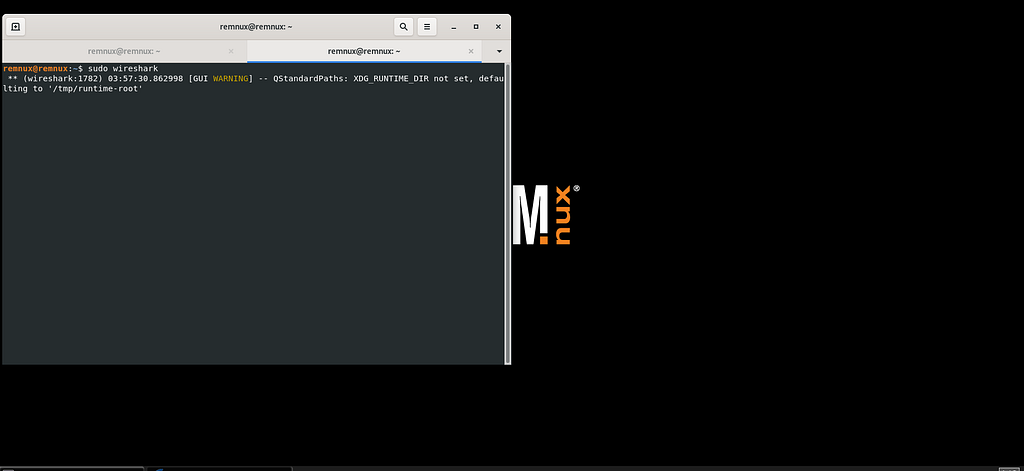
Now we will start inetsim and wireshark in our remnux machine.
inetsim
sudo wireshark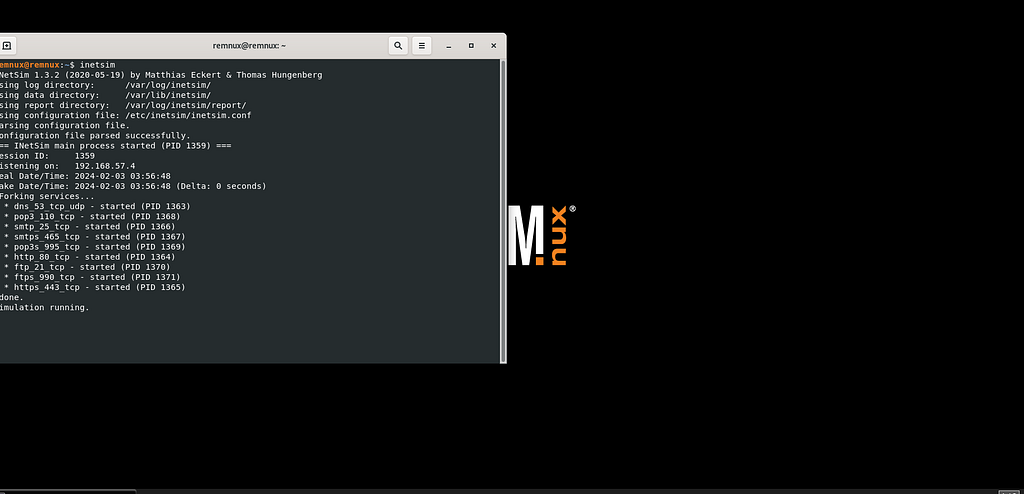
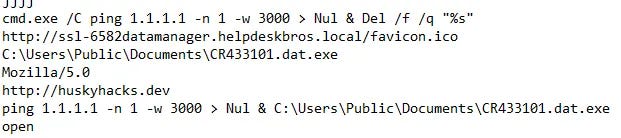
Now from our static analysis we have got these strings in our sample
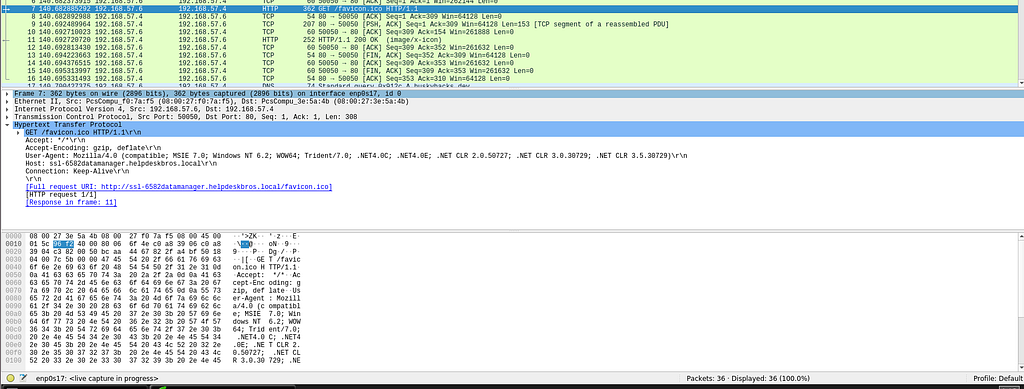
Network-based Indicators
Now if we run this binary again with wireshark and inetsim running we can see that it makes a request to the url we saw when we performed static analysis on this binary.
Host-based Indicators
Now start inetsim and Procmon. Procmon is an advanced monitoring tool for Windows that shows real-time file system, Registry and process/thread activity.
Now if we look at Procmon we can use its filter option to filter for information we just need.
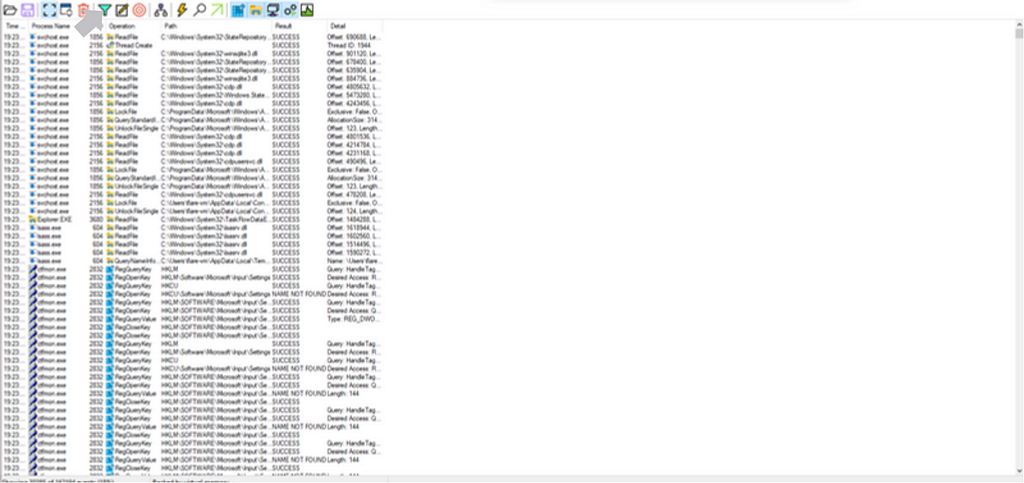
Now if we set Process Name in first drop down menu and “is” in second drop down menu and “Malware.Unknown.exe” in input like this then click add->apply->ok.
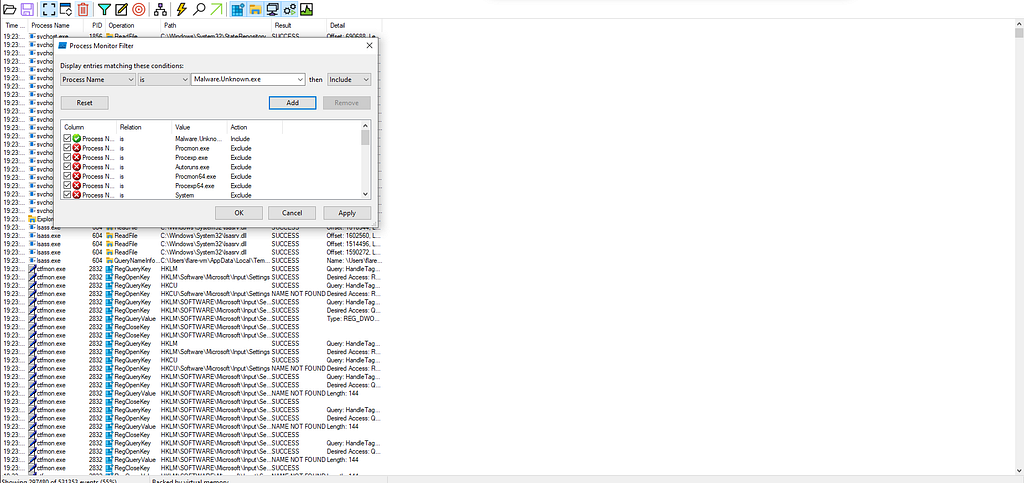
You will see no results because we have not run the binary yet. Now run the binary and you will get to know what this process is doing. We get the Time,Operation,Path,Result and Details sections.
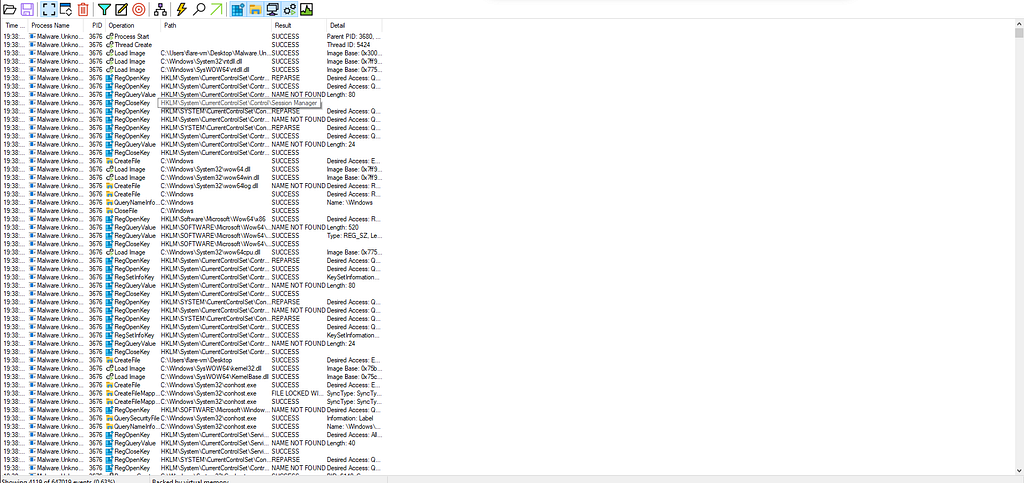
Operation is the most important field here. Now if we have to look for the operations related to files we can again use filter option and set Operation contains File like this
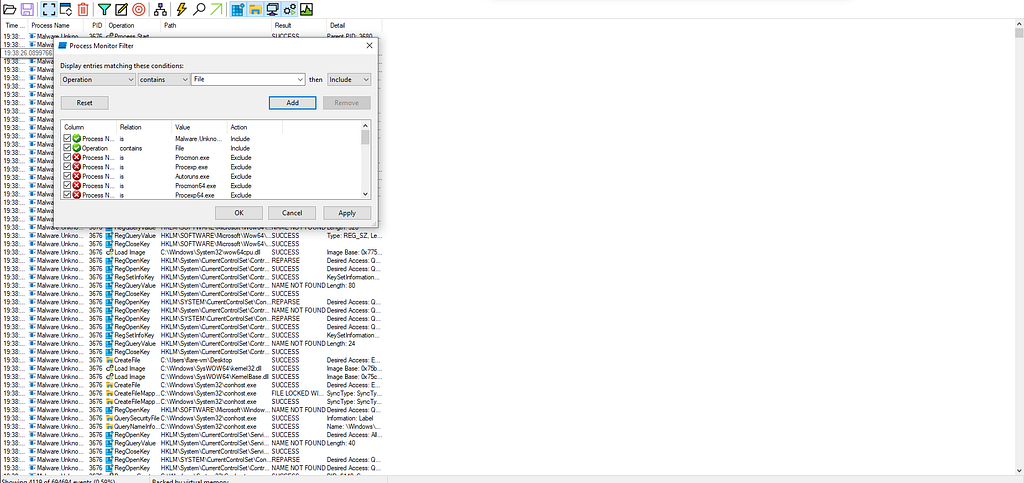
then click add->apply->ok. You will see all the operations related to files like createFile,writeFile etc.
If we scroll down far enough we can find an indicator that correlates with what we find in our basic static analysis that is there is a file created in this path

If we go to the path we can find the CR433101.dat.exe there
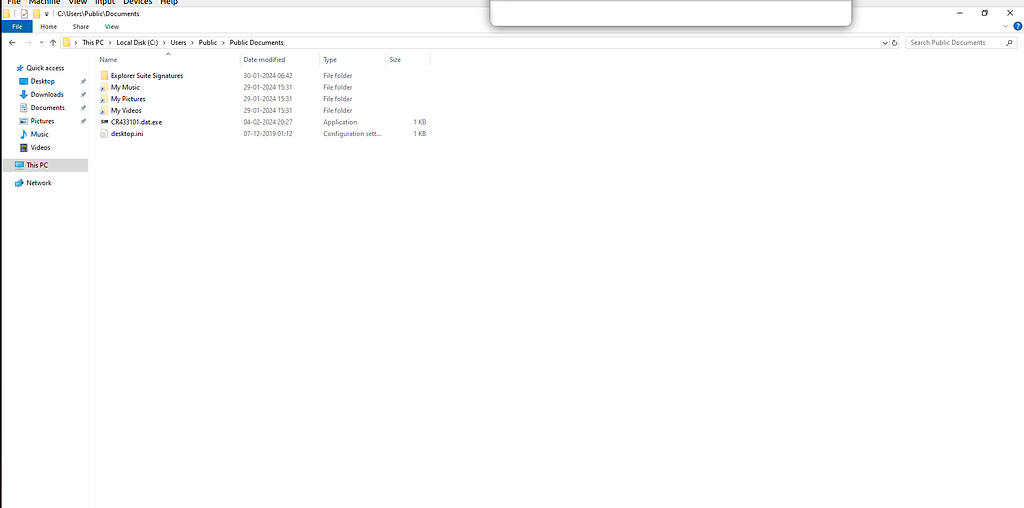
If we delete the CR433101.dat.exe and again run the malware binary and look it in this directory we will find this file again there.
So now we can say that this sample is reaching out to a domain and downloading a file from there. So we can hypothesize that this binary is malware dropper which is downloading another malware to infect the system. Now the file being downloaded is a inetsim default binary. We can’t know what this second stage payload is. We can also see that the favicon.ico is requested but something else is written to our file system.
Now when we first run this binary without inetsim running we saw that this binary deletes itself. It may have to do with this string in binary which we saw in Basic static analysis

If we now stop inetsim and start procmon with filters
Detail Contains “cmd.exe /C ping 1.1.1.1 -n 1 -w 3000 > Nul & Del /f /q “%s””
and
Process Name is Malware.Unknown.exe
we will find

and if we double click on this we can see that the binary calls cmd.exe and this is the same string which we saw earlier during Basic static analysis
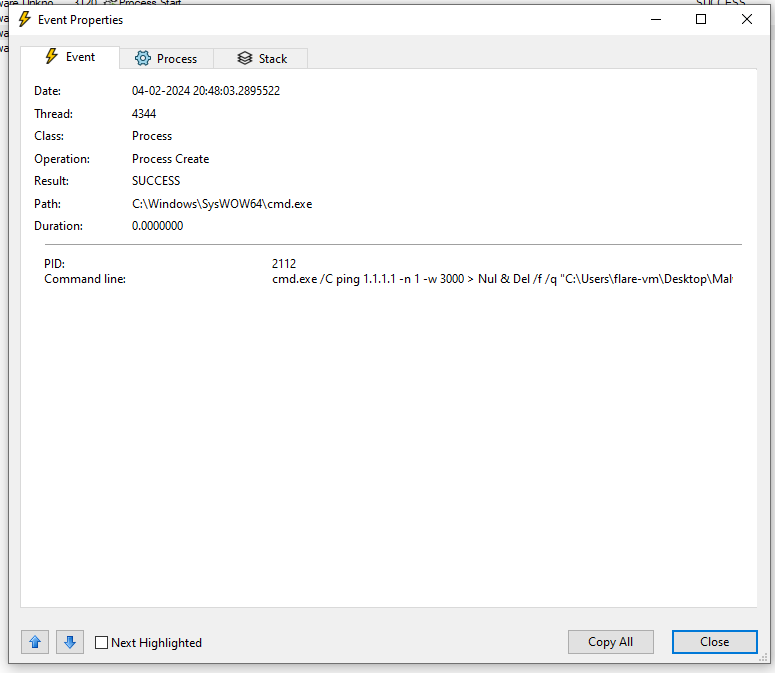
So this is like a kill switch for the binary that if it is able to reach the domain, it will download the second stage payload and if it is not able to reach the domain, it will delete itself from Disk.
So, this is for today. Bye till next time. The next blog is going to be on Advanced Static Analysis which is going to be long one because we have to learn about assembly and reverse engineering and other cool stuff.
I hope you enjoyed it, You can follow me here on LinkedIn or Twitter. If you have any suggestion or find mistakes in this blog feel free to contact me through Linkedin or Twitter.